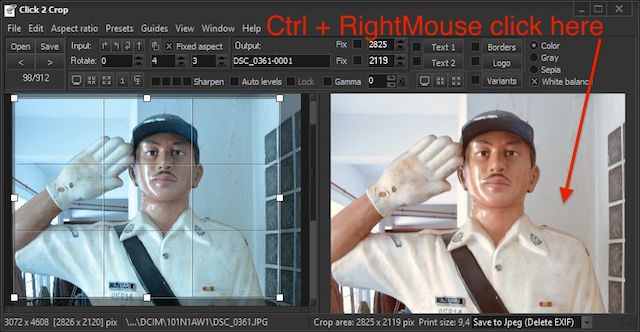
To use instant white balance correction press Ctrl + RightMouse button over neutral gray area of the
output image. I.e. you need to press Ctrl keyboard key and click with Right Mouse button over some
"would be" gray area of the picture.
In example above we know that the wall has a neutral gray color. It's not gray at the original photo
because of wrong white level settings of the camera. To correct camera's error we need just to Ctrl +
RightMouse click over the some point of the wall and we'll getting the proper colors.
As soon as we did this correction white balance checkbox will be checked. Uncheck it to view original
image, or to try click over another neutral color area to get better results.